






Game day is almost here, so set your system once and enjoy the party. Super Bowl LX kicks off Sunday, February 8, 2026 at 6:30 p.m. ET, 5:30 p.m. CT, live from Levi’s Stadium. Watch on NBC, stream on Peacock, and get Spanish coverage on Telemundo. It is the Seattle Seahawks versus the New England Patriots, and the Apple Music Halftime Show stars 6 time Grammy Award Winner Bad Bunny.
This year’s Super Bowl is planned in 4K HDR with Dolby Digital 5.1 where supported by your device, app, and provider. If you only see HD or stereo, use the steps below to enable Bitstream and surround.
4K note for Xfinity customers: Comcast introduced RealTime4K, an ultra-low-latency 4K option that delivers the game just seconds behind the action and, by Comcast’s claim, up to 30 seconds faster than other 4K providers.
It is available via a dedicated Peacock 4K channel with Dolby Vision and Dolby Atmos on supported equipment. Check your X1 guide or Xfinity Stream app for the 4K channel. Learn more: Comcast/Xfinity press release.
NBC and Peacock have announced “4K All Day” coverage on February 8, with 4K HDR where supported. Most providers deliver 5.1 surround for the game.
Availability and setting names depends on your device, app, and provider settings. When in doubt, refer to the user manual of the product you are using or contact your service provider.
Your one preset, then forget it
1) Connect once, the simple way.
If you use a streaming box or cable box, plug it into your receiver or soundbar, then run HDMI from that device to the TV. If you use TV apps, turn on eARC or ARC in the TV settings. eARC or ARC means “Audio Return Channel,” which lets the TV send sound back to your audio system over HDMI.
In the TV audio menu, go to Settings → Sound → Audio Output and choose Bitstream or Passthrough (or Auto if Bitstream is not offered). This passes the original audio to your system instead of converting it to basic stereo.
2) One surround setting for everything.
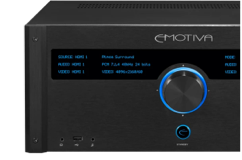
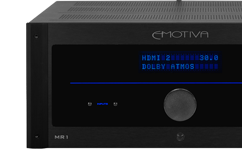
On your receiver or soundbar, select Auto or Dolby Digital. If the channel is stereo only, enable a gentle upmixer like Dolby Surround or DTS Neural:X (sometimes labeled Movie or Surround).
This keeps commentary centered, spreads the crowd to the sides, and makes the halftime music feel full across the room. Your single preset covers the whole night.
3) Voices that stay clear, on any device.
TV speakers: in the TV audio menu, turn on Dialogue or Clear Voice and set it to Low. Soundbar: use the Voice or Dialogue button on the soundbar remote or app, set to Low. Receiver with no center speaker: in the receiver’s audio options, set Dialog Level or Dialog Enhancer to Low.
If you have a center speaker, raise its level by +1 to +2 dB so play-by-play stays easy to follow while people chat.
4) Bass with energy, not boom.
Before the game, play a song with steady bass. Turn the subwoofer up until it feels full, then back it down one small step if the room rumbles. You want drums and tackles to hit, not picture frames to buzz.
5) Picture that flatters football.
Choose Movie, Cinema, or Filmmaker mode. In a bright room, Standard works after you turn off power-saving features that dim the screen. Keep Motion/Blur Reduction low so the ball is easy to track, keep Motion/Judder low so movement looks natural, and set Sharpness low to avoid halos on yard lines and jersey numbers.
6) Lip-sync check.
If mouths do not match the words, add Audio Delay on the receiver, soundbar, or TV in small steps, about 10 ms at a time, until it lines up.
Why this works: one preset handles the game and the music, so you can enjoy the night without touching a menu again. That means clear voices, a lively crowd, and a halftime show that fills the house.
Quick tips for any setup
TV speakers or a soundbar: Use Standard, Movie, or Clear Voice. If you see Surround, 3D, or Virtual, start at Low or Auto. If the room sounds echoey, turn that effect down one click.
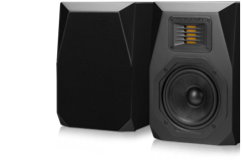
Receiver with speakers: Aim the center speaker toward ear height. If it sits in a cabinet, pull it forward so the front edge is even with the shelf. Use native 5.1 when it appears, and let the upmixer handle stereo sources automatically.
Room and seats: Toe in the front speakers slightly toward the couch. A rug or throw between speakers and seats softens echo so voices pop. Lower the HVAC fan one notch and keep clinking glassware away from the center speaker.
Halftime, still hands-free
When Bad Bunny hits the stage, enjoy the show. Your single preset already covers it.” Vocals stay clear, the sound fills the space, and the bass stays punchy without swallowing the room. Let people dance through the kitchen and drift back for the third quarter with a fresh plate.
Need a sanity check before the weekend?
Got setup questions for your Emotiva gear, or want help confirming your connections and modes match what you see above?
Give us a call by Friday, February 6th before 5 p.m. CT and we will walk you through it: 615-790-6754 or sales@emotiva.com.
Support details are on our site: Emotiva Support.
Quick game-day checklist
• TV audio on Bitstream or Passthrough, eARC or ARC enabled
• Receiver or soundbar on Auto or Dolby Digital, upmixer on for stereo sources
• Dialogue enhancement set to Low on the device you are using
• Center channel +1 to +2 dB if you have one
• Sub level full but controlled
• Picture mode Movie/Cinema/Filmmaker, power-saving off during the game
• A/V Sync dialed in if needed
• Spare batteries and one known-good HDMI cable nearby
Helpful Emotiva guides
Want more detail after the final whistle? These reads go deeper:
• Home Theater Surround Sound Setup for clean 5.1 or 7.1 layouts.
• Subwoofer Basics: What You Need to Know! for smooth, even bass.
• How to Read Audio Specs (Without Getting Overwhelmed) for translating watts, ohms, and sensitivity.
• 5 Common Home Audio Mistakes And How to Fix Them for quick wins that apply to any room.
• Browse the full Guides hub: Emotiva Guides.
Set it once. Enjoy the game, the music, and the people. Then save the preset so the next big night is one button away.
Share Post
Related Articles

Behind the Build: Nostala LB12 Vintage Loudspeakers

Behind the Build: DR Design Series Streamer, DAC, Preampl...

Keith's Corner: What exactly is streaming?

One Hub, Real Hi-Fi, No Fuss | NEW Emotiva BasX TA2+ Inte...
