




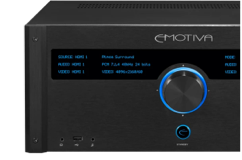
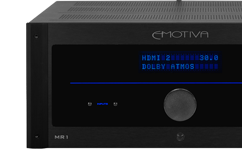



In Part 1, we introduced the Emotiva LX platform and covered the major features that make it such a capable home theater hub. Now it is time to get everything connected and calibrated.
In Part 2 of our three-part LX guide, we’ll walk through:
• Connecting your LX product to your home network
• Using Wi-Fi or Ethernet
• Checking for firmware updates
• Getting started with Dirac
• Preparing your room and microphone
• Avoiding the most common setup problems
The goal here is not to turn you into a network engineer or acoustics technician. It's to help you get the basics right so the system can do what it was designed to do.
Start With the Network
LX can connect to your home network with either:
• Wired Ethernet
• Wi-Fi
If you can run an Ethernet cable to your equipment, that is usually the best place to start. A wired connection is simple, reliable, and less affected by things such as metal racks, enclosed cabinets, and wireless interference.
Wi-Fi is a perfectly valid option when running a cable is not practical.
The important thing is that the LX unit, your control device, and any computer you plan to use with Dirac can see each other on the same local network.
Setting Up Wi-Fi
When an LX product powers up without a saved network connection, it can enter setup mode, allowing your phone or tablet to find it. Give the unit a moment to fully boot.
From there, you can use a compatible mobile device to connect the LX to your home Wi-Fi.
On Apple Devices
On an iPhone or iPad:
1. Open Settings.
2. Go to Wi-Fi.
3. Look for the LX device.
4. Select it.
5. Follow the prompts to join your home network.
Apple devices can make this especially easy because they may use the Wi-Fi credentials already stored on the phone or tablet.
Once the LX is connected, you should see a valid IP address in the network information menu. That tells you the unit is successfully on the network. You can also verify the connection by opening the control app and checking that the LX product appears.
A quick volume change from the app is an easy way to confirm that everything is communicating properly.
Setting Up Wi-Fi With Android
Android users can also set up the LX through the control app.
The process generally looks like this:
1. Open the LX control app.
2. Find the unconfigured LX device.
3. Select your home Wi-Fi network.
4. Enter your Wi-Fi password.
5. Let the app complete the connection.
Depending on the device, you may also be able to begin the setup through the phone’s Wi-Fi settings.
The important part is simply getting the LX product and your phone or tablet onto the same local network.
If You Change Routers or Move the System
LX includes a Forget Network option.
That is useful if:
• You replace your router
• You change your Wi-Fi name or password
• You move the unit to another home
• The product still remembers someone else’s network
• You want to start the wireless setup again
You don't need to factory reset the entire unit just to clear the network information. Use Forget Network, then reconnect normally.
Google Cast
Android users may be prompted to enable Google Cast during setup. If you plan to use Google Cast, it is easiest to approve it during the initial setup. You can still enable it later if you skip it.
This matters because Cast-enabled playback depends on the device being properly registered and available on the network. If you skip that step and later wonder why the LX does not appear as a Cast destination, this is one of the first settings to check.
Can LX Work Without Internet?
Yes! The LX product does not need an internet connection just to function as a receiver or processor.
You can still:
• Select inputs
• Configure speakers
• Watch movies
• Listen to music from connected sources
• Use the front-panel and on-screen menus
What you lose without a network connection are features such as:
• App control
• Network streaming
• Over-the-air firmware updates
• Some network-based services
• Network-based Dirac communication
So while internet access is not required for basic operation, we strongly recommend connecting the unit if possible.
Keep the Firmware Current
Once LX is on your network, it can check for firmware updates over the air.
That is a much easier process than the old routine of downloading firmware to a computer, copying it to a USB drive, and then starting the update manually.
With OTA updating, the LX can check for newer firmware directly.
Why Update?
A new LX unit may ship with firmware that was current when it left production, but newer firmware may be available by the time it reaches your home.
Updates can include improvements to things such as:
• Menu behavior
• Surround processing
• Network performance
• Compatibility
• Speaker handling
• General system operation
The product should still work without an immediate update, but checking for the current firmware is a good first-install practice.
OTA Update Options
The LX menu gives you different ways to handle updates.
Depending on the selected setting, the system may notify you when an update is available, install the update after entering standby, or begin the update more immediately.
For most users, a notification or standby-based option makes the most sense. That gives you control without making firmware updates something you have to remember to do manually.
What If You Don't Have Internet?
USB updating is still available. That gives owners and installers a fallback when the LX product is not connected to the internet.
The exact manual update procedure can vary depending on the firmware package, so always follow the instructions supplied with the specific update.
For most users, OTA is the easier path.
Now Let’s Talk About Dirac
Your room has a big influence on how your speakers sound. Walls reflect sound, furniture absorbs it, and corners can make bass more pronounced. Even moving to a different seat can change what you hear.
Dirac helps your LX account for those differences by measuring how your system sounds at your listening positions and using those measurements to create correction filters. The goal is to reduce the room’s influence so you can hear more of what your speakers are capable of.
What You Need for Dirac
For a typical Dirac setup, you will need:
• Your LX receiver or processor
• The supplied calibration microphone
• A compatible computer or tablet
• A quiet room
• A correct speaker configuration
• A stable network connection
The supplied microphone is calibrated for measurement use. How you connect it depends on how you want to run Dirac.
Microphone Connected to the LX
The simplest approach is to plug the supplied microphone directly into the LX product. When you do that, the LX can automatically provide the appropriate calibration information.
That means you don't need to manually load a separate microphone calibration file. This is a convenient option when the equipment and listening position are reasonably close together.
Microphone Connected to the Computer
You can also connect the microphone directly to the computer running Dirac. This is useful when your LX is far from the seating area, such as in a separate equipment room. It lets you keep both the computer and microphone near your listening position while taking measurements.
With this setup, you may need to load the microphone’s calibration file manually. Keep the USB connection simple and avoid long extensions or multiple adapters where possible, since an unreliable connection can interrupt measurements.
Get the Network Right Before Opening Dirac
This is one of the most important parts of the entire process. A lot of “Dirac problems” are really network problems.
Before launching Dirac, make sure the computer and the LX product are on the same local network.
Check the IP Addresses
In a typical home network, the IP addresses should look similar.
For example:
LX:
192.168.1.52
Computer:
192.168.1.51
The last number can be different. What matters is that the main part of the address matches.
If your LX is on one network and your computer is on another, Dirac may not be able to find the processor even though both devices have internet access.
Mesh Networks Can Complicate Things
This comes up often in modern homes.
You may have:
• An internet provider’s modem/router
• A separate mesh Wi-Fi system
• Guest Wi-Fi
• Multiple access points
• Wired devices on one network and wireless devices on another
If the LX is plugged into one router while your laptop is connected to a different network, they may not be able to communicate.
Think of it like trying to print to a printer that is connected to someone else’s Wi-Fi. Both devices are “online,” but they are not on the same local network.
Windows Users: Check the Network Type
If you are running Dirac on Windows, make sure your home network is set to Private rather than Public. Windows uses Public mode to protect you on networks such as airports and coffee shops.
That is useful on the road.
At home, it can prevent your computer from communicating freely with devices on the local network. Dirac needs that local communication.
VPNs and Firewalls
If Dirac has trouble connecting to its server or finding your LX, check whether your computer is running a VPN. Temporarily turning it off may help resolve the connection issue.
Firewalls, security software, and corporate network restrictions can also interfere. A personal computer connected to your home network is usually the simplest option, since work laptops may have security policies that limit the connections Dirac needs.
What Dirac Is Looking For
When Dirac starts, it does two important things.
First, it communicates with Dirac’s servers. Second, it looks for the LX product on your local network.
If Dirac cannot reach its server, check:
• Internet access
• VPN settings
• Firewall settings
• Security restrictions
If Dirac reaches its server but cannot find the LX, check:
• Local network
• IP addresses
• Mesh-network setup
• Windows network type
• Whether both devices are on the same subnet
That distinction can save a lot of troubleshooting time.
You Don't Need to Manually Enable Dirac First
On LX, Dirac discovery is designed to be simpler than on some earlier products. You don't need to dig into the LX menu and manually enable Dirac before opening the software.
If the LX is correctly connected to the network, Dirac should be able to discover it.
Before Measuring, Configure Your Speakers
This is critical.
Dirac needs to know exactly which speakers are installed. That information comes from the speaker configuration in the LX menu.
Before running Dirac:
1. Open speaker setup.
2. Confirm the number of bed-layer speakers.
3. Confirm the number of subwoofers.
4. Confirm height or overhead speakers.
5. Remove any speaker positions you do not actually have.
Why? Because Dirac will try to measure every speaker the processor says exists.
If the LX detects a speaker that is not physically connected, Dirac may fail the measurement. And the error message may not clearly say, “That speaker is missing.” It may simply report that the signal level is too low.
Correct speaker configuration prevents a lot of unnecessary frustration.
Make the Room Quiet
Dirac is listening closely, so the room needs to be reasonably quiet.
Try to avoid:
• HVAC noise
• Fans
• People talking or moving around
• Appliances
• Alarms
• Open windows with traffic noise
Dirac wants a quiet, stable environment so the microphone can hear the speakers clearly.
Set the Measurement Level
Dirac will play test signals through the speakers. Before beginning the full measurement sequence, check that each speaker is playing at a reasonable level.
You want to confirm:
• Every expected speaker plays
• No channel is dramatically louder than the others
• The level is clearly above the room noise
• Nothing sounds obviously wrong
The values don't need to be perfect. This is a sanity check before the real measurements begin.
Choose the Listening Area
Dirac lets you choose how wide an area you want to optimize.
A smaller measurement area is better for a single primary listener, and a wider pattern makes more sense when several people regularly use the room.
For example:
Single-seat system: Choose a more focused measurement pattern.
Couch or multiple seats: Use a wider pattern.
Multiple rows: Use a broader measurement area so Dirac has information from both rows.
The wider the measurement area, the more the correction becomes a compromise across multiple seats rather than optimized for a single point.
Start at the Main Listening Position
The first measurement should be taken at the primary listening position.
Put the microphone approximately where your ears would normally be. That first measurement is important because it anchors the rest of the calibration.
After that, Dirac will guide you through additional positions around the listening area.
Move the Microphone
The goal is to measure a three-dimensional listening area. Don't take every measurement from the same point.
Move the microphone:
• Left and right
• Forward and backward
• Slightly higher and lower
Think of the measurements as describing the space around the listener’s head and seating area. The software then uses that collection of measurements to understand how the system behaves throughout the listening zone.
Yes, the Sweeps Are Loud
Dirac uses frequency sweeps through every speaker. They can sound unusual and can get fairly loud. That is totally normal.
If you would rather not sit through them, Dirac lets you use a delay before the measurement starts so you can step away from the listening area.
Reading the Measurement Graph
After measuring, Dirac displays the speakers' response. You will see different shapes for different types of speakers.
For example:
• Subwoofers will show strong low-frequency output
• Small height speakers will roll off earlier in the bass
• Larger front speakers may extend lower
• Room effects will create peaks and dips
You don't need to understand every line immediately. The important point is that Dirac now has real information about how your speakers behave in your room.
Dirac Live, Bass Control, and ART
LX supports several levels of Dirac processing. They are not simply “basic, better, best.” They are tools for different levels of system complexity.
1. Dirac Live
For most users, this is the best place to start. Dirac Live measures the room and speakers, creates correction filters, and gives you a powerful way to improve system consistency.
It is sophisticated, but still approachable.
2. Dirac Live Bass Control
Bass Control goes further by managing the relationship between multiple subwoofers and the rest of the system. This becomes especially valuable in rooms with more than one subwoofer.
3. Dirac ART
ART is the most advanced option. It can use other speakers in the system to help correct the room's behavior. That gives it enormous capability, but also means the setup requires more understanding.
More Advanced Doesn't Mean Easier
Dirac ART gives you more control over how your system works with your room, but it takes some care to set up. It uses speakers throughout your system to help control room resonances, so the settings need to reflect what each speaker can comfortably handle. A small height speaker has different limits than a large front speaker, and frequency range, crossover settings, and placement all matter.
If you’re new to Dirac, we recommend starting with Dirac Live. Get comfortable with the measurement process and correction settings before exploring Bass Control or ART.
Target Curves
After measuring, Dirac gives you control over the target response. That means you can decide how you want the corrected system to behave.
You can adjust things such as:
• Bass level
• Treble level
• Correction range
• Speaker-group targets
You can also limit the frequency range that Dirac corrects. That can be useful when you do not want the system making large changes outside the useful operating range of a particular speaker.
Don't Chase Perfection
It’s easy to look at the measurement graph and feel like every small peak and dip needs fixing. You don’t need to chase each one. A balanced, natural sound across your listening area matters more than a perfectly flat line.
Start with a reasonable target curve and spend some time listening to familiar music or movies. If something sounds off, make small, deliberate adjustments based on what you hear.
Save Your Dirac Project
Once you’ve taken your measurements and created a correction you’re happy with, save your Dirac project. That way, you can return to your work and adjust settings without repeating the entire setup.
A saved project is useful for trying different target curves or exploring Bass Control and ART with your existing measurements. If you want to compare different measurement areas, save each set as a separate project so you can revisit it later.
Consider it insurance for all of your hard work.
Uploading the Filter
Once the measurements and target settings are complete, Dirac calculates the correction filter. The heavy processing happens on the external computer or device. Once finished, the filter is uploaded into the LX unit. After that, the computer is no longer required for normal listening. The LX simply uses the saved filter during playback.
What Changes When Dirac Is Active?
When a Dirac filter is active, some manual settings in the LX menu may become unavailable. That is intentional.
Dirac has calculated the system based on a specific set of:
• Speaker levels
• Timing
• Distances
• Speaker configuration
• Filter behavior
If you manually change those values afterward, you could undermine the calibration. So some controls may disappear or become locked while a Dirac filter is active.
Turn Dirac off, and those manual controls return.
If You Change the Speaker Layout, Rerun Dirac
Dirac filters are created for the speaker configuration you measured. If you add, remove, or replace speakers, you should run Dirac again so the correction reflects your updated system.
For example, adding rear surround speakers to a 5.2.2 system turns it into a 7.2.2 layout. Your previous measurements won’t include those new speakers, so you’ll need to take new measurements and create new filters.
A Simple Dirac Troubleshooting Checklist
If Dirac doesn't work, don't start changing random settings. When in doubt, work through the basics.
1. Is the LX connected to the network?
2. Is the computer or tablet on the same network?
3. Do the IP addresses appear to be on the same subnet?
4. On Windows, is the network set to Private?
5. Is a VPN running?
6. Is a firewall or security program interfering?
7. Are you using a heavily managed work computer?
8. Can Dirac reach its server?
9. Can Dirac discover the LX?
10. Is the microphone detected?
11. Is the room quiet?
12. Does every configured speaker actually exist?
13. Does every speaker produce sound?
14. Does the LX speaker layout match the real room?
This list will solve a surprising number of problems.
The Big Picture
Getting your LX ready comes down to a reliable network connection, current firmware, and a careful Dirac setup.
Your network supports more than streaming. It also lets the Emersa app find and control your LX, delivers firmware updates, and connects your system to Dirac for calibration. Taking the time to get that connection right makes the rest of setup easier, while over-the-air updates help you keep your LX current.
With Dirac, start with the basics. A careful Dirac Live setup can make a meaningful difference, and you can get comfortable with the results before exploring Bass Control or ART. There’s no need to use every feature right away. Take your time and build from there as your system needs it.
Next: Getting the Whole System Working Together
In Part 3 of our Emotiva LX Guide, we will move beyond network and calibration and focus on the rest of the system.
We’ll cover:
• Speaker hookup
• Crossovers
• Levels and distances
• Input assignment
• HDMI troubleshooting
• CEC
• Apple TV and Roku settings
• TV audio settings
• Backup and restore
If Part 2 is about getting LX connected and calibrated, Part 3 is about making the entire home theater work together smoothly.
Need to backtrack? Click the link below:
Emotiva LX Guide, Part 1: Meet the LX Series
Share Post


