




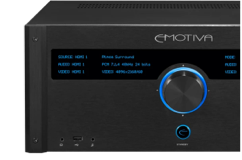
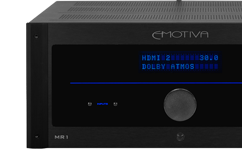



By this point, you know what the LX platform can do, and you know how to get it online, updated, and calibrated. Now it's time to make the rest of the system work together.
In Part 3 of our three-part LX guide, we’ll cover:
• Speaker hookup
• Speaker layout
• Crossovers
• Levels and distances
• Input assignment
• HDMI behavior
• CEC
• Source-device settings
• TV settings
•Backup and restore
This is where the LX becomes more than a processor or receiver. It becomes the control center for the entire system.
Start With the Physical Connections
Before you get deep into menus, make sure the hardware is connected correctly.
That sounds obvious, but a modern theater may involve:
• Multiple speakers
• Multiple subwoofers
• External amplifiers
• HDMI sources
• A television or projector
• Network connections
• Control systems
The more connections you have, the easier it is for one cable to end up in the wrong place. A methodical setup saves a lot of troubleshooting later.
Speaker Outputs Are Assigned
On the LX receiver, the amplified speaker outputs correspond to specific channels.
Examples include:
• Front left
• Center
• Front right
• Surround left
• Surround right
• Surround back left
• Surround back right
• Front height
• Rear height
Additional speaker positions can be supported through preamp outputs.
The important thing is that the physical speaker needs to match the output you are using. If a surround speaker is accidentally connected to a rear-channel output, the processor does not know that. It will simply send the rear-channel information to that speaker.
That is why setup verification matters.
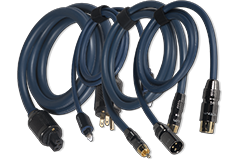
Balanced and Unbalanced Connections
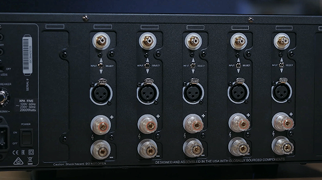
The LX platform provides balanced and single-ended connections for external amplification and other equipment.
Balanced XLR connections can be especially useful for longer cable runs because they are designed to help reject noise.
That can be helpful when:
• Power amplifiers are far from the processor
• Subwoofers are located across the room
• Cables need to travel through walls or equipment spaces
If your amplifier or subwoofer only accepts RCA, use the appropriate connection for that device. The goal is not to use XLR simply because it exists. Use the connection that makes sense for the system you are building.
Use the Main HDMI Output First
The LX has multiple HDMI outputs, but if you’re using one TV or projector, start with the main HDMI output. If you plan to use ARC or eARC, make sure you’re using the designated connection on both your LX and your TV.
When setting up or troubleshooting, keep the connections simple. Connect one source to an HDMI input on your LX, then connect the main HDMI output to your display. Once you have picture and sound working as expected, add your other sources and any additional displays.
Configure the Speaker Layout Before You Listen
During setup, tell your LX which speakers are connected and where they’re placed. It uses that information to route the soundtrack correctly. If you enable a speaker that isn’t there, audio intended for that channel may be missing from what you hear.
You don’t need a speaker in every possible position to enjoy a complete soundtrack. With an accurate speaker configuration, your LX can adapt playback to your speakers.
Main Speakers
The main speaker count refers to the bed-layer speakers around the listener.
Depending on the room, that may include:
• Front left and right
• Center
• Surrounds
• Surround backs
• Wides
A traditional surround system may use five or seven main speakers. A larger immersive system may use more.
Choose the layout that matches the room you actually have.
If You Don't Have a Center Channel
Most movie dialogue comes through the center channel, so it’s important to tell your LX whether you have a center speaker. If you don’t, the LX can send that audio to your front left and right speakers.
If the center channel is enabled but no speaker is connected, you could miss much of the dialogue. Setting the center speaker to “None” in your speaker configuration ensures that audio reaches the speakers you’re using.
Configure Your Subwoofers
Next, set the number of subwoofers in the LX menu to match your system. Whether you’re using one, two, or more, the setting should reflect how many are connected.
Do this before running Dirac so it can measure and correct the active subwoofer outputs.
Height, Top, and Dolby Enabled Speakers
Immersive audio brings sound above the listening area, and the LX supports several speaker arrangements to do this. During setup, choose the type that matches how your speakers are installed:
• Height speakers are mounted high on a wall.
• Top speakers are installed in or on the ceiling.
• Dolby-enabled speakers fire upward, reflecting sound off the ceiling toward the listening area.
These settings tell the LX where the sound will come from so it can direct immersive effects to the appropriate speakers.
Dolby Enabled vs. Overhead Speakers
Dolby-enabled speakers can be useful when ceiling installation is not practical. They are designed to reflect sound from the ceiling and create a sense of height. If you can install dedicated overhead speakers, that generally provides a more direct presentation.
But not every room makes that easy.
The important thing is to configure the LX for the type of speaker you are actually using.
Crossovers: Keep It Simple
For many systems, 80Hz is a very good starting point.
With an 80Hz crossover:
• Frequencies above 80Hz go to the main speaker
• Frequencies below 80Hz are redirected to the subwoofer system
LX gives you the option to use a global crossover or set speakers individually. For a straightforward system, global is easy and effective.
When to Use Individual Crossovers
Some speakers need a higher crossover setting than others. Small height speakers, for example, may struggle with deeper bass. A crossover of 100 Hz or 120 Hz can send more of that bass to the subwoofer, letting the speaker focus on frequencies it can reproduce comfortably.
Choose crossover settings based on each speaker’s capabilities. It’s fine to use different settings where they’re needed, but there’s no reason to make every channel different.
Don't Overcomplicate the Crossover Map
It is easy to look at the frequency response of every speaker and create a different crossover for every channel. That isn't always necessary.
Different crossover points can affect phase relationships around the crossover region. For many systems, a simpler crossover strategy is easier to manage and sounds excellent.
Use the fewest different crossover points that make sense for the speakers in the room.
Verify Every Speaker With the Test Tones
Before moving on, use the built-in test-tone generator in the LX menu to check each speaker. The tone should come from the speaker you select. If you choose the center channel, you should hear the center speaker. If you choose the right surround, you should hear the right surround.
Work through every channel to confirm that the connections from your LX through your amplifier to each speaker match your configuration. Catching a swapped cable or incorrect connection now can save you a lot of troubleshooting later.
Balance the Speaker Levels
You can also use the test tones to bring your speakers to roughly the same volume at your listening position. An SPL meter is ideal, though a phone-based SPL app can help you compare levels between speakers.
At this stage, you’re checking that no speaker is noticeably louder or quieter than the others. Around 70 dB was used as a starting point in our training for basic manual setup. Dirac will handle the more detailed acoustic calibration later.
What If the Subwoofer Doesn't Wake Up?
Many powered subwoofers use automatic signal detection. If the test tone is too low, the subwoofer may remain in standby.
If that happens:
1. Temporarily raise the test level.
2. Wait for the subwoofer to wake up.
3. Bring the level back down.
4. Continue with the setup.
Don't assume the subwoofer is disconnected just because it does not respond immediately.
Levels Before Dirac
If you’re planning to run Dirac, you don’t need to spend much time fine-tuning speaker levels manually. Dirac will handle the final level calibration.
Before you begin, check that your speaker configuration matches your system, each speaker plays when selected, and none sounds dramatically louder or quieter than the others. Once those basics are in place, you’re ready to move on to calibration.
Speaker Distances
If you are doing a manual setup without Dirac, enter the distance from each speaker to the main listening position.
Use a tape measure and measure from the speaker to approximately where your head will be when seated. The processor uses those values to calculate the delay.
Why? Because sound from a speaker four feet away reaches you before sound from a speaker twelve feet away. The LX compensates for that difference, so the channels arrive in better time alignment.
Dirac and Distances
If Dirac is active, it handles timing and level alignment as part of the correction process. That means manually entered distances become less important.
The speaker configuration itself is still critical. Dirac needs to know what speakers actually exist before calibration begins.
Set Up Your Inputs
The LX gives you a lot of possible sources. But, it can also get annoying if you have to scroll through all of them every time you want to watch something.
So configure the inputs around how you actually use the system.
Common sources might include:
• Streaming box
• Game console
• Disc player
• TV audio return
• Turntable
• External streamer
• CD player
Assign Quick-Access Buttons
The remote provides quick-access input buttons that can be configured for the sources you use most often.
For example:
• Button 1: Apple TV
• Button 2: Game Console
• Button 3: Disc Player
• Button 4: TV Audio
• Button 5: Phono
This makes your remote intuitive for everyone who uses the room.
Rename Inputs
Renaming your inputs makes everyday use easier. Instead of remembering which device is connected to “HDMI 2,” name that input “Apple TV.” The same goes for “Coax 1” or “Analog 1,” which could become “CD Player” or “DAC.”
When you want to watch or listen, you can simply choose the device by name.
HDMI Is a Conversation
HDMI does more than carry picture and sound. It also lets your source, LX, and display communicate about the video and audio formats they support, as well as copy protection and control functions.
When that communication works smoothly, everything feels automatic. When it doesn’t, you may experience a black screen, slow switching, missing audio, dropouts, or unexpected changes in resolution. Ticks or pops can also occur during format changes.
Because every device is part of that connection, troubleshooting may involve checking the source, display, HDMI cables, and settings, as well as your LX.
Don't Forget the HDMI Cable
HDMI cables are easy to overlook when upgrading a system, especially if they’re already installed in the wall. You might replace your source, processor, and TV while keeping a cable that worked well with your previous equipment.
That cable may struggle with the higher bandwidth required by some newer video formats. If you’re having trouble with 4K or 8K video, higher frame rates, HDR, or gaming features, check that every HDMI cable in the signal path supports the format you’re trying to use.
What Is CEC?
HDMI CEC allows connected devices to control each other.
That can include:
• Powering other devices on or off
• Switching inputs automatically
• Controlling receiver volume
• Using one remote for multiple devices
When it works well, it's extremely convenient.
Getting Consistent Results with CEC
CEC lets HDMI-connected devices control power, volume, and input selection, but results can vary between products.
If turning on your streaming box reliably wakes the LX and TV and selects the right input, use that routine. If you get unexpected input changes or power behavior, review the CEC settings on each device.
Streaming Devices and Format Changes
Apple TV’s Match Dynamic Range and Match Frame Rate settings adjust its output to suit the content. When the video format changes, your LX and display may briefly show a black screen while the new signal is being established.
A short interruption during that transition can be normal. A picture that never returns, or interruptions during steady playback, need further troubleshooting.
Leaving these matching options enabled helps preserve the content’s dynamic range and frame rate. A fixed output can reduce transitions, but may require Apple TV to convert the content.
Audio settings involve similar choices. Changing the output format may help with interruptions, but can also affect the availability of surround sound or Dolby Atmos. Test with familiar content and check what the LX receives. Apple TV may decode audio before sending it, so the front-panel format won’t always match the streaming service’s label.
Roku offers similar controls, though the options vary by model. With either device, change one setting at a time to see what helps.
Check Your TV’s Settings
Some TVs require an enhanced HDMI setting to accept higher-bandwidth video. Settings may differ by input, so check the port connected to your LX for the formats and features you want to use, including HDR, Dolby Vision, and high frame rates.
If you use the TV’s built-in apps, also check its ARC or eARC and audio output settings. Pass-through is often useful when you want the LX to decode supported audio formats. PCM or other processing options may have the TV convert the audio first, which can explain an unexpected format on the LX display.
Your TV’s manual can help confirm the correct ports and settings.
Troubleshooting HDMI
Start with one source connected through the LX to one display. Check the source settings, HDMI cables, LX connections, and TV input settings in that order.
For audio issues with TV apps, check ARC or eARC and the TV’s audio output settings. For unexpected changes in power or input, review CEC.
Change one thing at a time. Once that simple setup works reliably, add the remaining equipment.
Third-Party Control
The LX can be integrated into a larger control system so that a single remote or touchscreen controls your equipment. Installers should confirm compatibility and supported functions with their chosen platform before setup.
Back Up Your Setup
Once everything works as expected, save your LX configuration to internal memory or external USB storage. An external copy is useful if the unit needs service or its internal backup becomes unavailable.
Confirm which settings and Dirac filters your installed firmware includes in the backup. Keep your original Dirac project files on the calibration computer too, so you can revisit measurements, adjust corrections, or upload filters again.
A Practical Setup Order
For a new installation, work through these steps:
1. Install the LX with the recommended ventilation.
2. With the equipment powered off, connect speakers, amplifiers, sources, and the display.
3. Connect to your network and check for firmware updates.
4. Configure your speaker layout and crossovers.
5. Run test tones to verify every speaker.
6. For manual setup, enter distances and adjust levels. For Dirac, follow its preparation and level-setting steps.
7. Assign and rename your inputs.
8. Test your sources and adjust HDMI and TV settings as needed.
9. Run Dirac and listen to familiar content.
10. Save your Dirac project and back up the LX configuration.
Resolve any problems as you go. It’s easier to find the cause before adding more equipment or changing more settings.
Ready to Listen?
Across these three parts, we’ve covered the LX platform, network setup, firmware, Dirac, speaker configuration, and HDMI connections.
You don’t need to master every feature at once. Start with accurate settings and reliable connections, then explore the advanced tools as you need them. Once everything is working, save your setup and enjoy a favorite album or movie.
Need to backtrack? Click the links below:
Emotiva LX Guide, Part 1: Meet the LX Series
Emotiva LX Guide, Part 2: Network Setup, Firmware Updates, and Dirac
Share Post


